New to AI? These 7 easiest AI tools to learn have free plans and simple setups — no technical background needed. Compare beginner-friendly picks for writing, design, and video, and start today.
Quick answer: ChatGPT is the easiest AI tool to learn — just type like texting a friend. Canva makes design drag-and-drop simple, CapCut edits video with templates, and Google Gemini works inside apps you already use. All have free plans.
Easy means three things: no setup hassle, plain-language controls, and useful results in minutes. Every tool here clears that bar.
How we checked
We judged ease by signup friction, interface simplicity, and time-to-first-result, and read each free-tier's terms on its official site. What we did not test: formal usability studies or learning curves past day one. Free plans change, so verify before you commit.
Comparison: the 7 tools at a glance
| Tool | Free tier | Learning curve | Best for |
|---|---|---|---|
| ChatGPT | Yes — free plan | Minutes | First AI experience |
| Canva | Yes — free plan | Minutes | Easy design |
| Google Gemini | Yes — free plan | Minutes | Google users |
| CapCut | Yes — free plan | Under an hour | Simple video |
| Grammarly | Yes — free plan | Minutes | Writing help |
| Perplexity | Yes — free plan | Minutes | Easy research |
| Notion | Yes — free plan | Under an hour | Simple organizing |
1. ChatGPT — Best First AI Tool
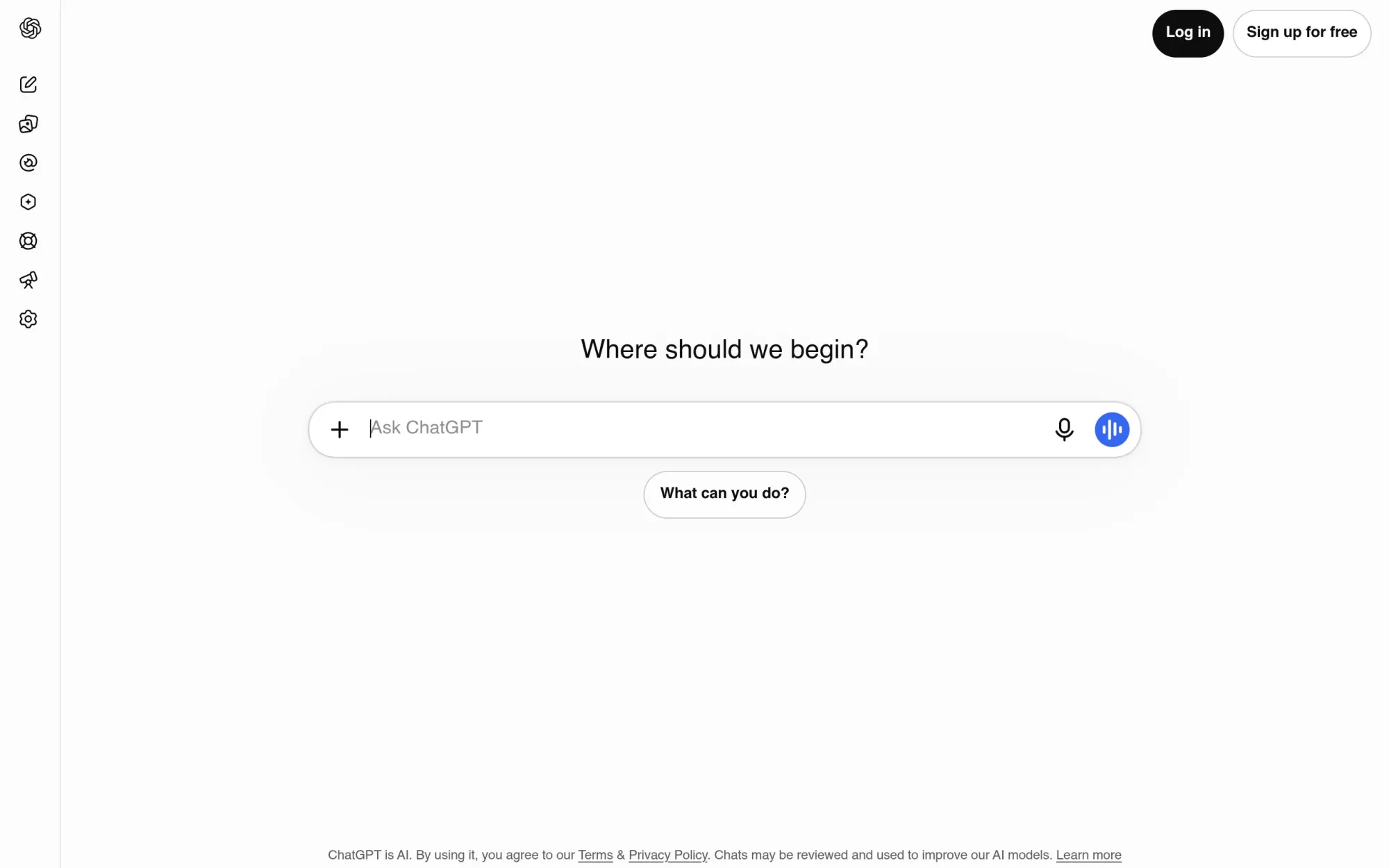
Price: Free plan; Plus is PKR 5,700/month.
Free tier
The free plan covers unlimited text chats, and you need no card to start. You can ask questions, draft emails, and get help with homework or work. Uploads, image creation, voice chats, and deep research all have limits on free. When you hit a cap, wait a while and try again later. The free plan is enough to learn how AI chat works.
Strengths
ChatGPT is a chat app, so there is nothing new to learn. Type a question in plain words and get an answer in seconds. It can also read files you upload, make images from a prompt, and talk back in voice mode. You can pick a fast model for quick questions or a deeper one for hard problems. First task: ask it to draft a polite email to your landlord about a leaking tap, under 80 words. Read the draft, then ask it to make the tone firmer. That is your first real result.
Trade-offs
Free users queue at busy times, so answers can be slow. Answers need fact-checking, because ChatGPT can state a wrong fact with full confidence. It is simple to start but deep to master, so keep your first tasks small.
Bottom line
Start here. If you learn one AI tool, this is the one.
2. Canva — Best Easy Design
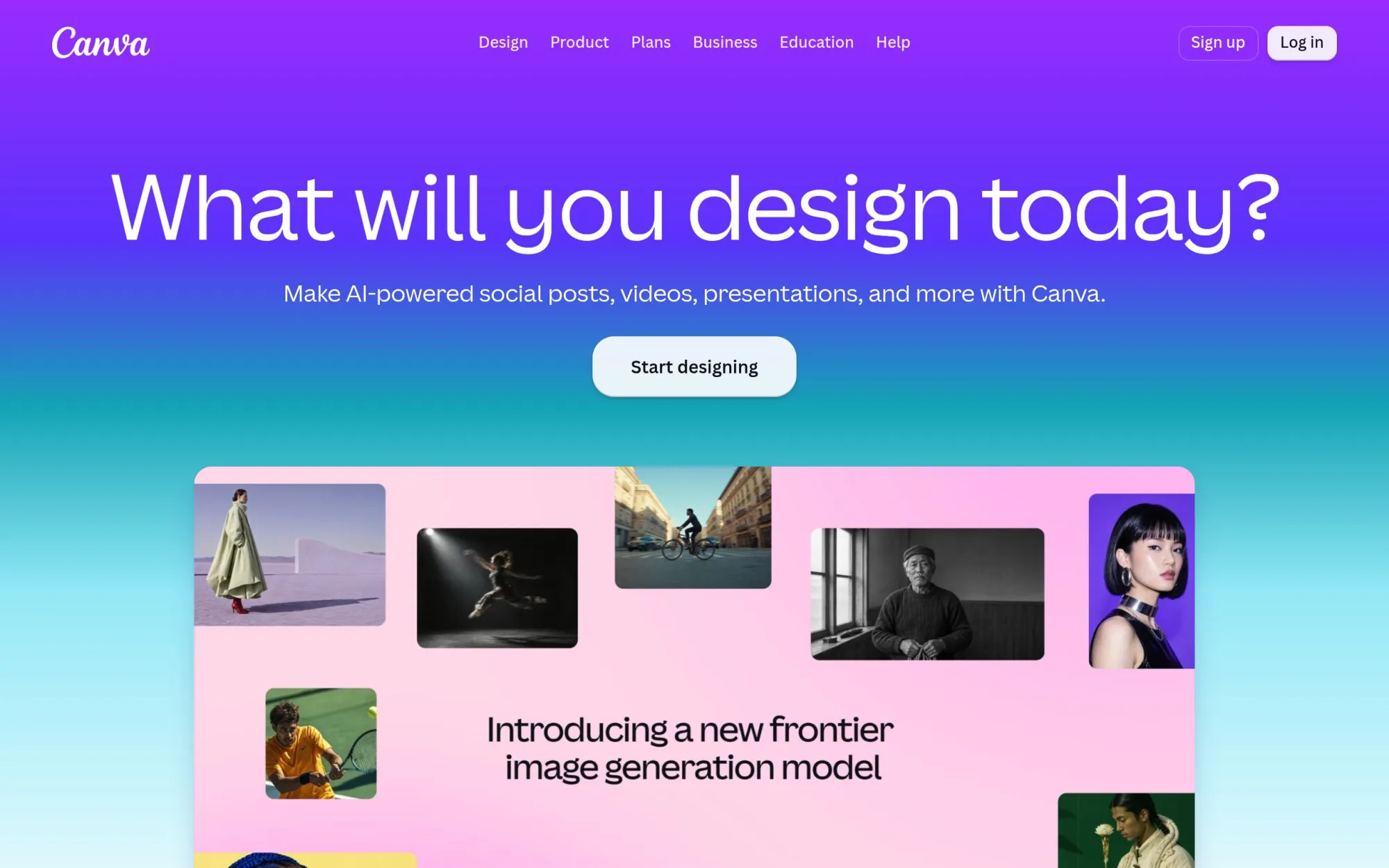
Price: Free plan; Pro adds premium assets.
Free tier
The free plan is permanent, so it never turns into a trial. It includes hundreds of thousands of free templates for posts, slides, posters, and resumes. You also get 5 GB of cloud storage for your designs. A small monthly allowance of AI uses comes with free, enough to try the AI writing and image tools. Premium templates, photos, and the full AI set need Pro.
Strengths
Pick a template, change the words, done. No design skill is needed — the templates do the heavy lifting. Magic Write drafts text inside your design, and Magic Media makes images from a prompt. Your work saves to the cloud, so you can open it on any device. You can also share a design and edit it together with someone else. First task: pick a social post template, swap in your own words and colors, and download it. Your first good-looking graphic takes ten minutes.
Trade-offs
Premium assets need Pro, and the free AI allowance runs out fast if you use it a lot. Template designs can look similar, since many people start from the same ones. Real originality takes more effort than a template swap.
Bottom line
Design without learning design. Perfect second tool.
3. Google Gemini — Best for Google Users
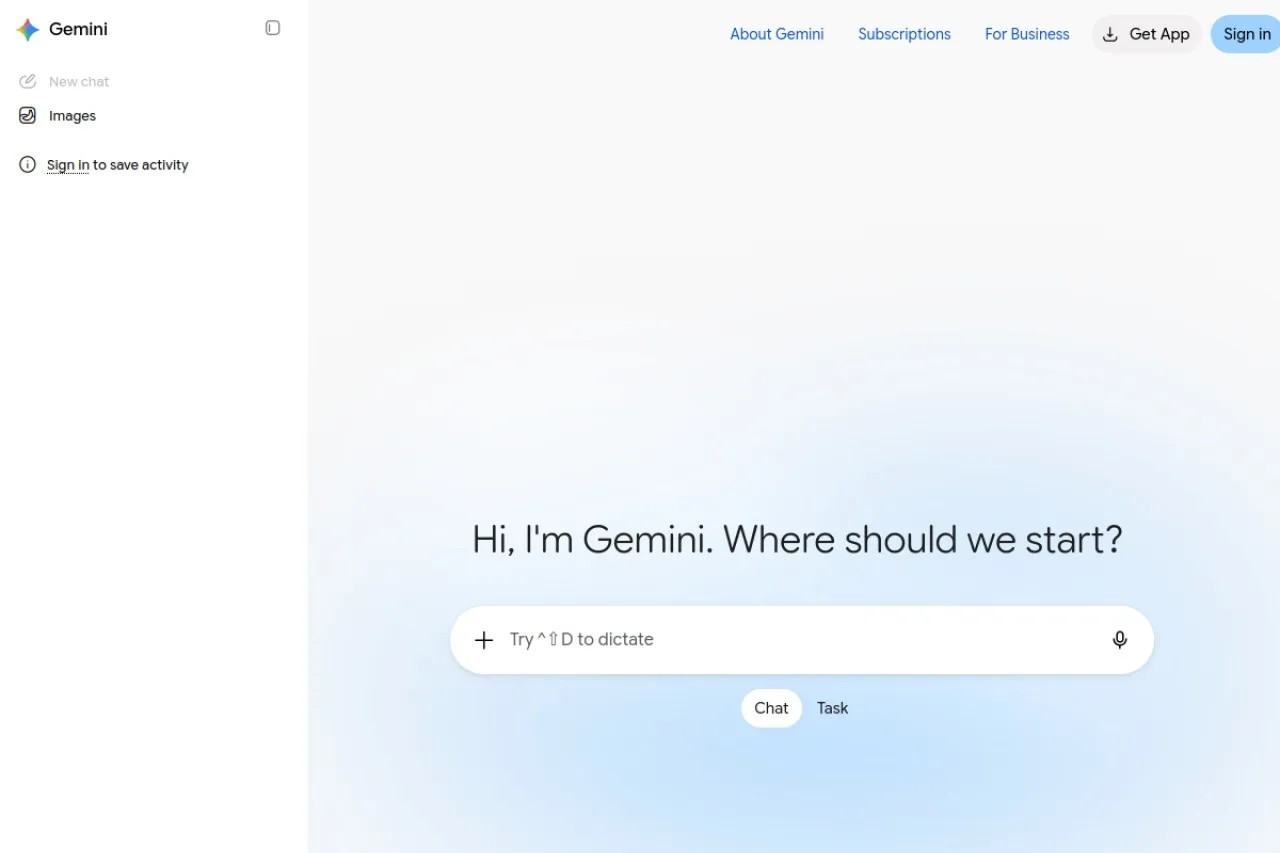
Price: Free plan; Google AI Pro is the paid tier.
Free tier
Gemini is free with any Google account — open the app and start chatting. It can answer questions, explain topics, and make images from a text prompt. In Gmail, it can draft replies, suggest answers, and sum up long email threads. Deeper help inside Docs and Sheets, such as drafting and editing long documents, needs a paid Google AI plan. The free app is the easy way in.
Strengths
Zero new habits — it works inside apps you already open daily. It can search the web as it answers, so facts stay fresh. It can also make images and short video clips from a prompt. On Android phones, it replaces the old voice assistant and can handle calls and smart home tasks. First task: open the Gemini app and ask it to explain a topic you find confusing, in simple words. Then ask a follow-up question. That back-and-forth is the whole skill.
Trade-offs
The best features need a paid plan, and access differs by account type. It is weaker outside Google apps — it shines when your work already lives in Gmail, Docs, and Drive. It is newer than some rivals, so fewer tutorials exist.
Bottom line
If you live in Gmail and Docs, this is the easiest AI you will ever learn.
4. CapCut — Best Easy Video Editing
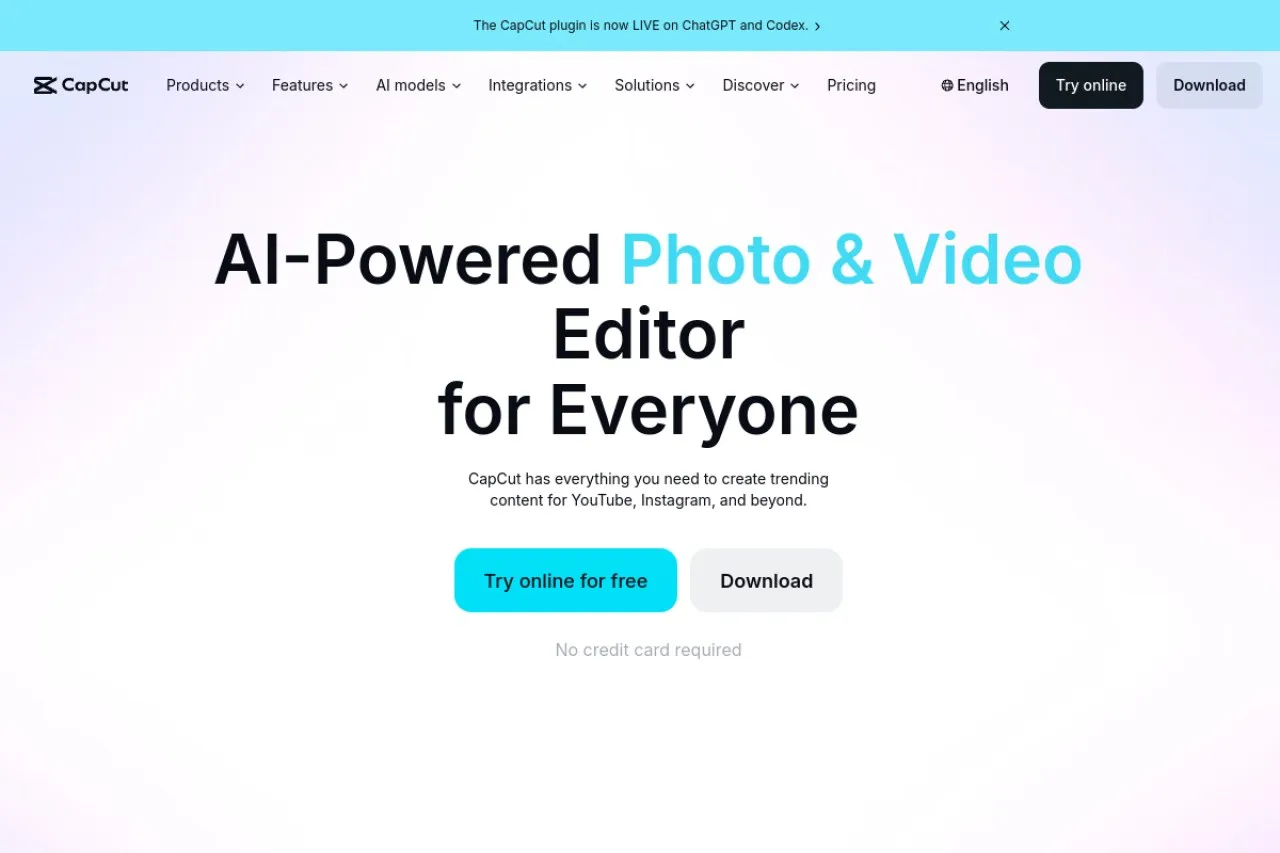
Price: Free plan full-featured; Pro adds extras.
Free tier
The free plan covers the full core editor: trim, split, transitions, filters, and text. Templates, auto-captions, and effects are free too. Exports on desktop top out at 1080p, which is plenty for phones. A watermark appears only if your project uses Pro-marked assets. 4K export and the full premium library need Pro.
Strengths
Templates do the editing for you — pick one, add clips, export. Auto-captions work with one tap and cover over 50 languages. Text-to-speech can read your script aloud in an AI voice. It runs on phone, desktop, and the web, so you can start on one device and finish on another. First task: pick a trending template, drop in three clips from your phone, add auto-captions, and export. Your first finished video takes under an hour.
Trade-offs
Template reliance limits creativity, since many videos start from the same designs. There is no free cloud storage, so keep your project files backed up yourself. Long projects get awkward on a phone screen, and Pro-badged items can block your export until you pay.
Bottom line
Video editing without learning video editing. Surprisingly easy.
5. Grammarly — Best Invisible Helper
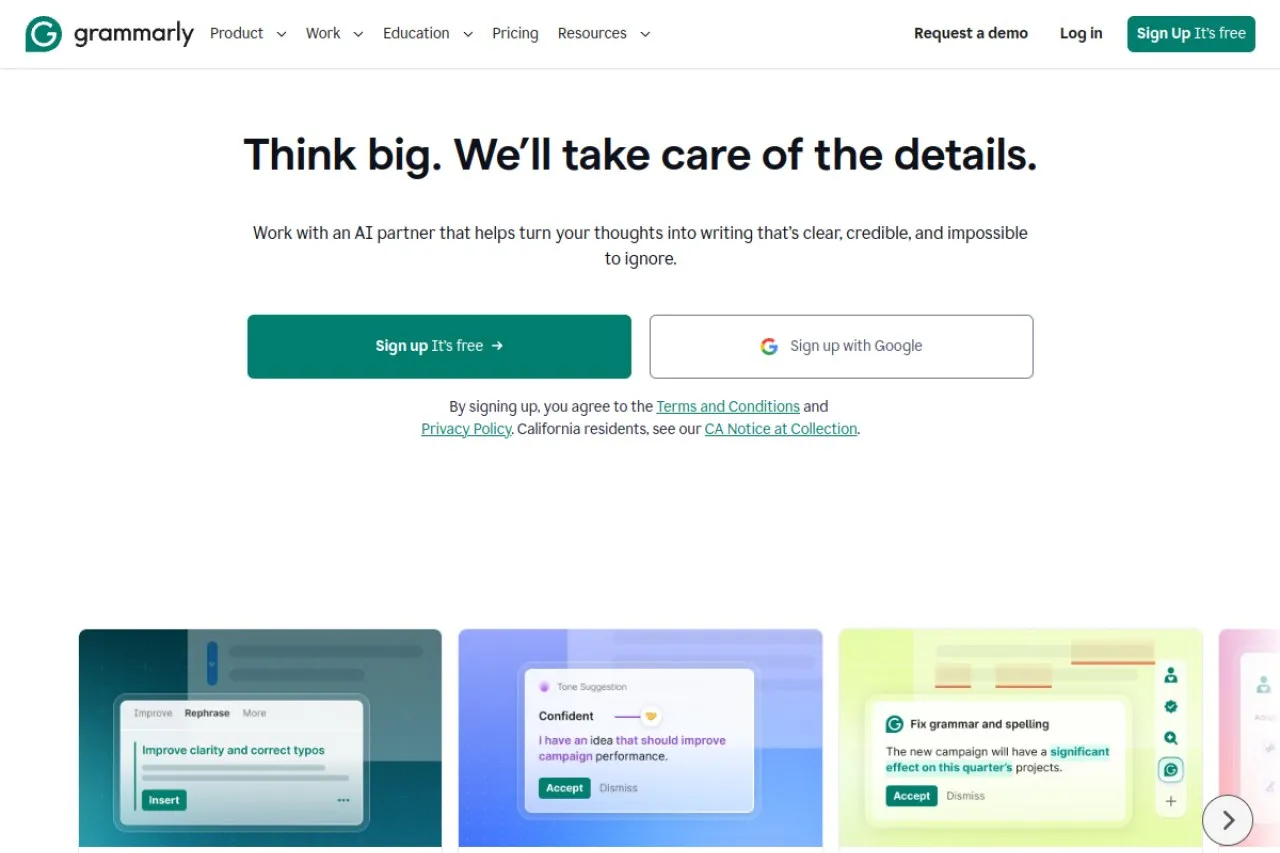
Price: Free plan; Pro adds tone help.
Free tier
The free plan checks spelling, grammar, and punctuation as you type, and it shows you the tone of your writing. You also get 100 AI prompts a month to generate or rewrite text. It works in your browser, Word, Google Docs, and email. Full-sentence rewrites, plagiarism checks, and 2,000 AI prompts a month need Pro.
Strengths
Install once and it just works — no learning at all. It underlines mistakes as you type in every app, with a short note on the rule behind each fix. That makes it a quiet teacher, not just a fixer. It suits students, job seekers, and anyone who writes emails all day. First task: install the browser extension, then write one email as usual. Accept the fixes, read the notes, and send a cleaner email than you would have alone.
Trade-offs
Basic checks only on free — tone tweaks and full rewrites need Pro. It corrects; it does not teach deep writing skill. It can flag correct text by mistake, so read each suggestion before you accept it.
Bottom line
Zero learning curve. It starts helping the second you install it.
6. Perplexity — Best Easy Research
Price: Free plan with daily limits; Pro removes caps.
Free tier
Basic searches are practically unlimited on the free plan, and every answer comes with citations you can click. You also get 3 Pro searches a day — the deeper mode that checks more sources — and 1 Research query a month for longer reports. You cannot pick an advanced model by hand on free, and image generation needs a paid plan.
Strengths
Ask a question, get an answer with sources — simpler than search engines. No tabs, no sifting through ten links. Follow-up questions keep the thread, so research feels like a chat. It suits students, writers, and anyone who needs a fact they can check. First task: ask about a recent event and click one citation to see the source page. That one click is the habit that makes Perplexity useful.
Trade-offs
Daily caps on free — three Pro searches go fast on a heavy research day. It answers; it does not do deep analysis by itself. Niche topics get thin, and the free model is picked for you, not by you.
Bottom line
Research without learning research. Ask and receive.
7. Notion — Best Easy Organizer
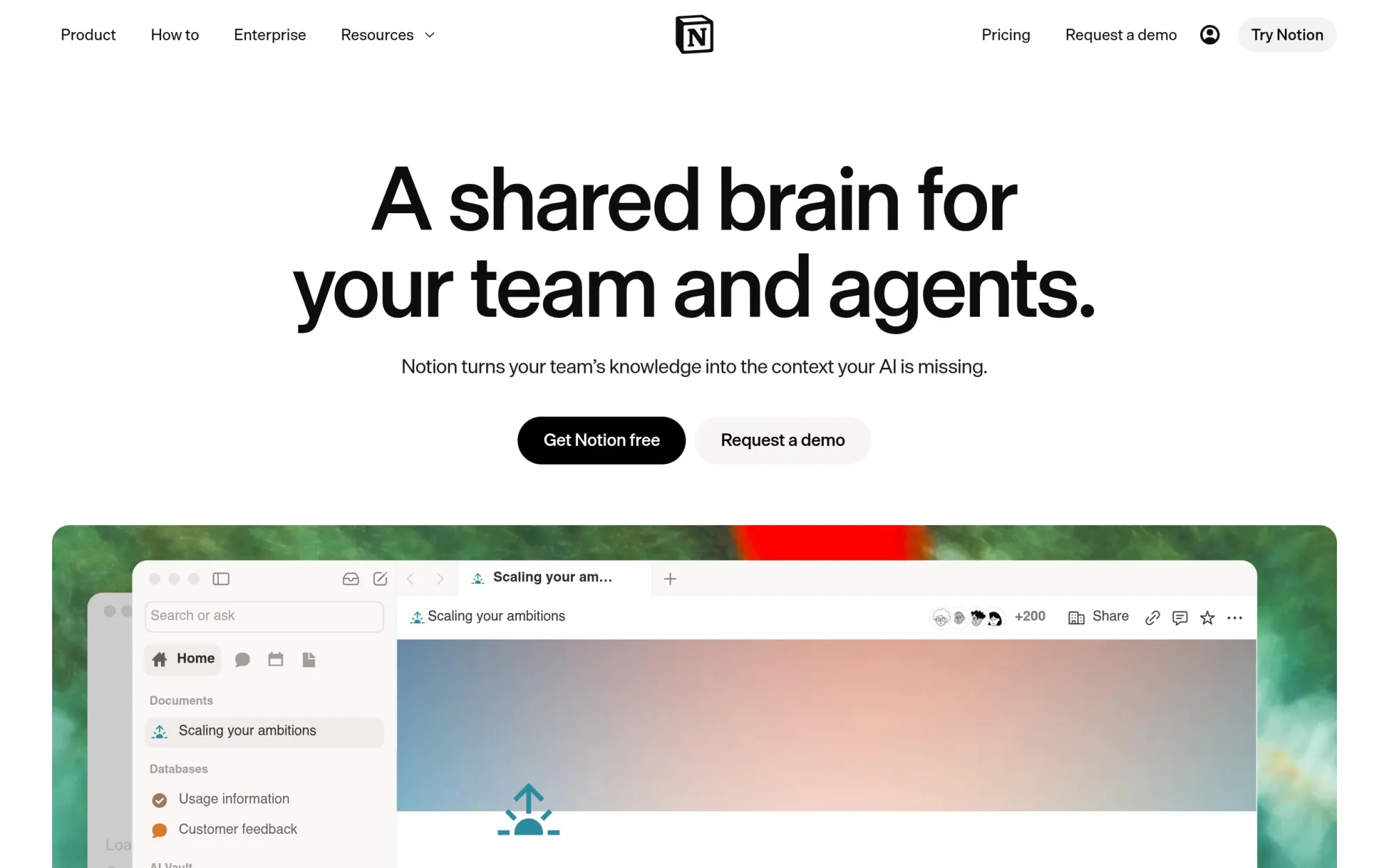
Price: Free for individuals; paid adds teams.
Free tier
The free plan is for one person and has no end date. You get unlimited pages and blocks for yourself, plus databases, forms, and Notion Calendar. File uploads are capped at 5 MB each, and page history only goes back 7 days. Once two or more people share a workspace, the free plan caps it at 1,000 blocks. Full AI features need a paid plan.
Strengths
Start with a template — notes, to-dos, or a journal — and it clicks within the hour. Drag-and-drop everything: move a task, nest a page, build a simple table. It grows with you from a plain notepad to a full planner with databases. First task: open the to-do template, add three real tasks for this week, and tick one off. That small win shows you how Notion thinks.
Trade-offs
Blank pages intimidate beginners — always start from a template. AI features cost extra, and the 5 MB file cap bites if you store big files. It takes an hour to learn, not minutes, and teams hit the block cap fast on free.
Bottom line
Slightly more to learn, hugely more useful. Worth the hour.
Your situation → best pick
| Your situation | Best pick |
|---|---|
| You have never used AI | ChatGPT |
| You need graphics fast | Canva |
| You live in Gmail and Docs | Google Gemini |
| You want to try video | CapCut |
| You want help without learning | Grammarly |
| You need quick answers | Perplexity |
| Your notes are chaos | Notion |
Frequently asked questions
What is the easiest AI tool to learn?
ChatGPT — you just type like texting a friend, and it responds. No tutorials needed for the basics. Grammarly is even easier since it works automatically after install. Start with either and you will be productive in minutes. Both are free to try today.
How can I learn AI tools with no technical background?
Pick tools built for non-technical users: ChatGPT, Canva, and Google Gemini all assume zero technical skill. Use free tiers, follow one beginner tutorial each, and learn by doing real small tasks — not by reading manuals. Small real tasks teach faster than any course.
Which AI tools are best for beginners?
ChatGPT for writing and questions, Canva for design, CapCut for video, and Perplexity for research — all free and beginner-friendly. Learn one at a time; each takes under an hour to get useful. Master one tool before adding the next.
How long does it take to learn AI tools?
Minutes for chatbots and checkers — ChatGPT, Grammarly, and Perplexity work immediately. Under an hour for Canva, CapCut, and Notion with templates. Mastery takes longer, but usefulness starts on day one. You will see real results in your first session.
Are AI tools hard for older adults to learn?
The easy ones are not. ChatGPT works like texting, Canva works like filling in a form, and Gemini lives inside familiar Google apps. Start with one, go slow, and ask the tool itself how to use it — it will explain.
What should I learn first in AI?
Prompting — how to ask clearly. Then one tool deeply rather than five shallowly. ChatGPT first for most people; Canva first if visuals matter more. Real tasks teach faster than courses. Once prompting clicks, every AI tool gets easier for you.
Start with one, master it, and add more when ready — for options, browse Draqee's AI tools directory.