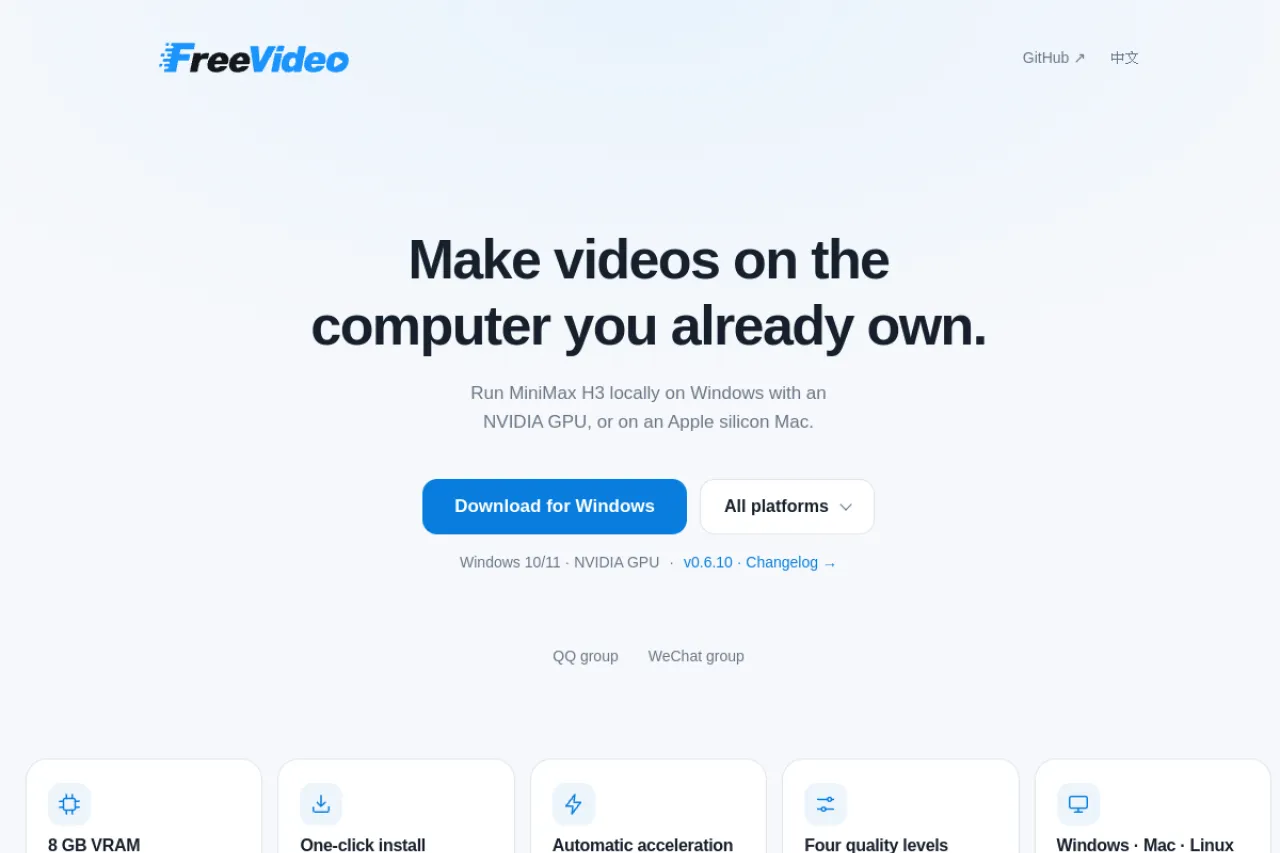
FreeVideo turns your own computer into an AI video studio. It runs the MiniMax H3 video model locally, so you can make videos with sound without paying for a cloud service. The catch is the hardware: you need an NVIDIA graphics card with at least 8 GB of VRAM and 16 GB of RAM. If your PC meets that bar, setup is simple. A one-click launcher installs everything and opens a workspace in your browser. This guide covers what FreeVideo is, what you need, and how to install it.
Quick Answer
FreeVideo is a free, open-source tool that runs the MiniMax H3 AI video model on your own computer. You need an NVIDIA GPU with 8 GB of VRAM and 16 GB of RAM, plus Windows, macOS, or Linux. Download the launcher, click Install and launch, and you can make videos with synced sound in your browser, with no account and no cloud fees.
What Is FreeVideo?
FreeVideo is a local inference engine for MiniMax H3, a video model that makes video with synchronized audio. It is built on OpenVDN's 8-step VDN-H3 model, which uses Video DeltaNet, a hybrid attention design. The engine runs as a ComfyUI plugin, and it comes with its own creative workspace inside ComfyUI.
The key idea is hardware-adaptive execution. FreeVideo checks your GPU and memory, then picks the weight format, precision, and attention method that fits. On GeForce RTX 30, 40, and 50 series cards it uses int8. On workstation and datacenter cards it uses FP8. Weight streaming and chunked computation keep peak memory low, which is how a large model runs on 8 GB of VRAM.
You can see what people make with it on the FreeVideo gallery, which shows clips made with the tool and the four quality levels side by side.
What You Need
Graphics card: An NVIDIA GPU with compute capability 8.0 or higher, such as the RTX 30 series or newer. Professional cards are included too.
Memory: At least 8 GB of VRAM and 16 GB of system RAM.
Windows: Windows 10 or 11.
Mac: macOS 14 or newer on Apple silicon. This is a preview, tested on an M5 Mac with 24 GB of unified memory.
Linux: A 64-bit PC with an NVIDIA GPU.
There is no sign-up and no account. The tool runs on your own machine, and your prompts stay with you.
How to Install FreeVideo
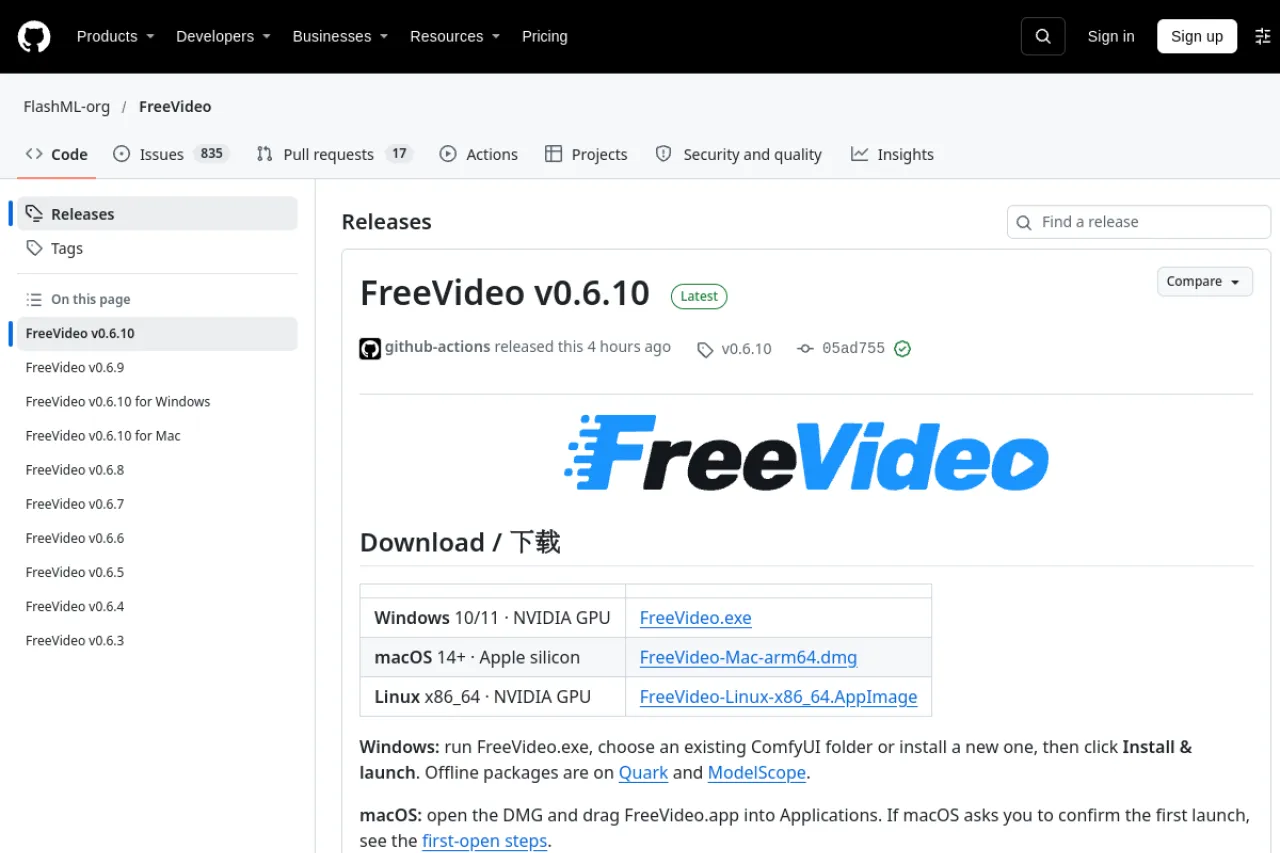
Windows: Download FreeVideo.exe from the releases page and run it. Pick your existing ComfyUI folder, or install a new one. Then click Install and launch. ComfyUI opens in your browser with the FreeVideo workspace. The launcher downloads any missing models for you. The file is code-signed, and the release page lists its SHA-256 hash so you can check it.
Mac: Download the disk image, open it, and drag FreeVideo.app into Applications. Open FreeVideo and follow the same steps as on Windows. The Mac preview is not notarized by Apple yet, so macOS blocks the first launch. Approve it once, as the Mac guide explains, and only download it from the releases page.
Linux: Download the AppImage, make it executable, and open it. The steps are the same as on Windows. For a terminal or a server, clone the repo and run the setup script, then type freevideo to open it again. On a server, connect from your own computer through SSH.
Already have ComfyUI: Clone the repo into the custom_nodes folder, restart ComfyUI, and open Workflow, then Browse Templates, then FreeVideo, then FreeVideo-All-in-One. Finish the setup in FreeVideo Settings.
No internet? You can install offline. Download the packages from Quark or ModelScope and drag the ZIP files into the launcher without extracting them. A full offline install needs the four model packs plus the environment package.
What You Can Make
FreeVideo makes videos from text prompts, with sound that matches the picture. You can also set a first and last frame, or guide it with an image, video, or audio reference. Community LoRAs for MiniMax H3 work in the same workflow.
Long videos are possible too. You can generate videos over a minute long, made in parts, and edit them on a timeline. A preview-first mode shows a half-resolution preview, so you only finish the videos you like. Videos carry their workflow: drop a FreeVideo video onto the ComfyUI canvas and it restores the prompt, seed, and settings.
It also makes pictures. H3 Image makes pictures up to 16 MP locally, from 8 GB of VRAM. You can upscale a finished video to a larger size, and run several videos at once in a batch.
Four quality levels: Light, Medium, High, and Max. Higher levels give more detail but take longer. Pick speed when you test ideas, and pick Max for the final version.
AI agents can drive it too. You can let an agent such as Claude Code or Codex make videos on its own.
License and Limits
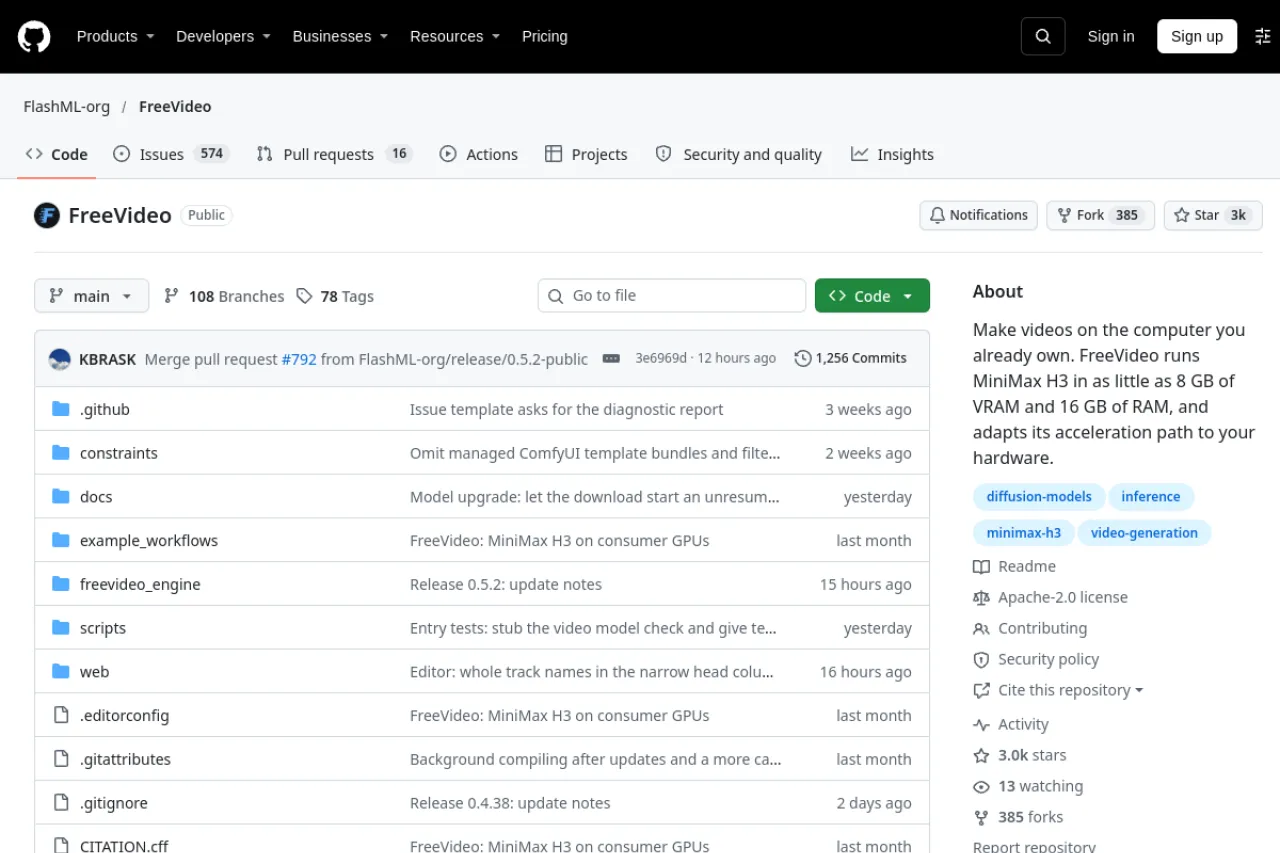
The FreeVideo code is open source under the Apache License 2.0. The model weights are different: they sit under the MiniMax H3 Community License, which includes territorial and acceptable-use restrictions. Read that license before you use the videos in a commercial project.
The Mac version is a preview, and it is not notarized yet. On Windows on Arm computers, dubbing is not available. And the tool needs an NVIDIA graphics card. There is no support for other graphics cards stated on the project page.
FreeVideo is new and moves fast, with new releases every few days. That is good for features, but the steps and screens can change. If a step here looks different on your screen, check the README on the project page.
Frequently Asked Questions
Is FreeVideo really free?
Yes. The code is open source under the Apache License 2.0, and there is no paid plan or sign-up. The model weights sit under the MiniMax H3 Community License, so read that license before commercial use.
What GPU do I need for FreeVideo?
You need an NVIDIA GPU with compute capability 8.0 or higher, such as the RTX 30 series or newer, with at least 8 GB of VRAM and 16 GB of system RAM. That is the minimum the project states.
Does FreeVideo work on a Mac?
Yes, as a preview on Apple silicon Macs with macOS 14 or newer. It was tested on an M5 Mac with 24 GB of unified memory. The app is not notarized yet, so macOS blocks the first launch until you approve it once.
Can I use FreeVideo without the internet?
Yes, after setup. Generation runs on your own machine, and a full offline install is possible with the model packs from Quark or ModelScope. The launcher can also download missing models for you when you are online.
Do I need ComfyUI already installed?
No. The launcher sets up ComfyUI, the runtime, and the models for you. If you already use ComfyUI, you can also install FreeVideo as a custom node and open its workspace from the templates menu.
Final Thoughts
FreeVideo is the easiest free way to run a strong video model on hardware you already own. If you have an NVIDIA card with 8 GB of VRAM, try it. Download the launcher, make a short test video, and see the quality for yourself before you plan a bigger project around it. Start small and scale up from there.